

Hello to all, welcome to therichpost.com. In this post, I will tell you, Angular 7 include html template working example.
If you are new in Angular 7, then please check the my old posts related to Angular 7.
Updated this post with Angular 9 include html file and solve all issue regarding old version:
Include custom css file into our Angular 9
I am sure, this post will very helpful to all my blog viewers. Most of my Blog readers asked me many questions related to this post and finally I came this post : Angular include html template working example
Here are the coding snippets for Angular 7 include html template working example and please follow carefully:
1. Very First, please run the below commands into your terminals to install fresh Angular setup:
$ npm install -g @angular/cli


ng new angularincludehtmltemplate //install new Angular 7 setup


cd angularincludehtmltemplate // Go inside fresh installed Angular 7 setup


ng serve // run angular 7 project


http://localhost:4200/ //run on browser
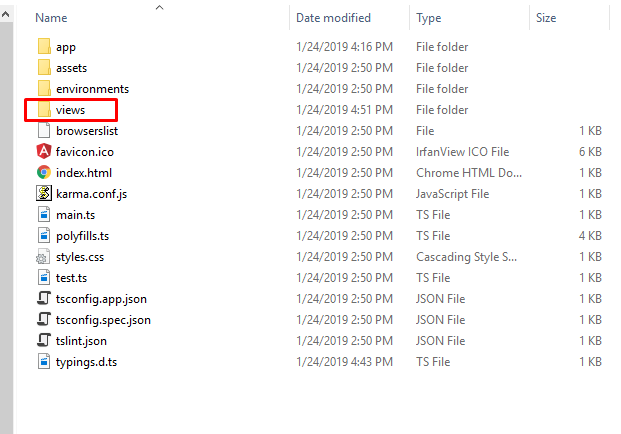
2. Now create views folder inside angularincludehtmltemplate\src folder:
3. Now create new file named includehtmlfile.html inside angularincludehtmltemplate\src\views folder:
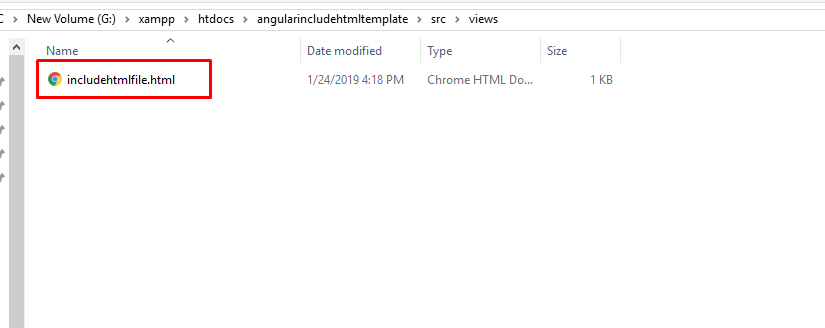
4. Now add any text inside angularincludehtmltemplate\src\views\includehtmlfile.html file:
WOW!!
includehtmlfile.html file has been included.
5. Now add below code into app.component.ts file:
import { Component } from '@angular/core';
import Html from "../views/includehtmlfile.html";  // Html file text import
@Component({
  selector: 'app-root',
  templateUrl: './app.component.html',
  styleUrls: ['./app.component.css']
})
export class AppComponent {
  title = 'angularincludehtmltemplate';
  test = Html;
}
After add import Html from “../views/includehtmlfile.html”; code into your app.component.ts file, you will get error like below image:

6. To overcome with above error, need to add below code into angularincludehtmltemplate\src\typings.d.ts file:
If you don’t get this file in Angular new version the please create into scr folder:
/* SystemJS module definition */
declare module '*html'
{
  const value:string;
  export default value
}
7. Now add below code into app.component.html file:
<div style="text-align:center">
  <h1>
    Welcome to {{ title }}!
  </h1>
  <img width="300" alt="Angular Logo" src="data:image/svg+xml;base64,PHN2ZyB4bWxucz0iaHR0cDovL3d3dy53My5vcmcvMjAwMC9zdmciIHZpZXdCb3g9IjAgMCAyNTAgMjUwIj4KICAgIDxwYXRoIGZpbGw9IiNERDAwMzEiIGQ9Ik0xMjUgMzBMMzEuOSA2My4ybDE0LjIgMTIzLjFMMTI1IDIzMGw3OC45LTQzLjcgMTQuMi0xMjMuMXoiIC8+CiAgICA8cGF0aCBmaWxsPSIjQzMwMDJGIiBkPSJNMTI1IDMwdjIyLjItLjFWMjMwbDc4LjktNDMuNyAxNC4yLTEyMy4xTDEyNSAzMHoiIC8+CiAgICA8cGF0aCAgZmlsbD0iI0ZGRkZGRiIgZD0iTTEyNSA1Mi4xTDY2LjggMTgyLjZoMjEuN2wxMS43LTI5LjJoNDkuNGwxMS43IDI5LjJIMTgzTDEyNSA1Mi4xem0xNyA4My4zaC0zNGwxNy00MC45IDE3IDQwLjl6IiAvPgogIDwvc3ZnPg==">
</div>
<h2>Here are some links to help you start: </h2>
<!--Import Content Code -->
<div [innerHtml] = 'test'></div>
7. Now run ng serve command into your terminal and you will get below output:
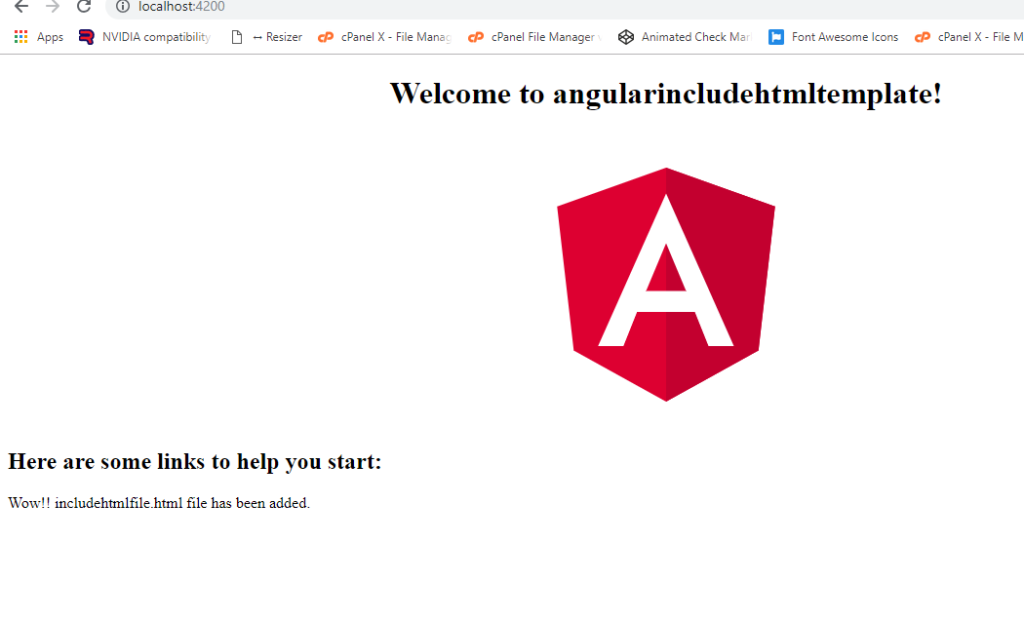
If you have any query related to this post then comment below or ask question.
Harjas,
Thank you


Leave a Reply